• HOME
  • News
  • Reviews
    • Cameras
    • Head-to-Head
    • Books
    • Monitors
    • Lenses
    • Smartphones
    • Software
    • Printers
    • Accessories
    • First Look
  • Contests
    • EISA Maestro
    • Picture of the Month
    • Smart Travel Contest
  • Tutorials
    • Ask Uncle Ronnie
    • Basics of photography
    • Camera Techniques
    • If I were You
    • Photoshop
    • Tips
  • PHOTOLOGUE
    • Kaleidoscope
    • Master Craftsmen
    • Showcase
    • Travel Photo-feature
  • Promotions
  • More
    • Buyer’s Guide
    • Subscription
    • Print Magazine
  • Advertise

  • HOME
  • News
  • Reviews
    • Cameras
    • Head-to-Head
    • Books
    • Monitors
    • Lenses
    • Smartphones
    • Software
    • Printers
    • Accessories
    • First Look
  • Contests
    • EISA Maestro
    • Picture of the Month
    • Smart Travel Contest
  • Tutorials
    • Ask Uncle Ronnie
    • Basics of photography
    • Camera Techniques
    • If I were You
    • Photoshop
    • Tips
  • PHOTOLOGUE
    • Kaleidoscope
    • Master Craftsmen
    • Showcase
    • Travel Photo-feature
  • Promotions
  • More
    • Buyer’s Guide
    • Subscription
    • Print Magazine
  • Advertise

Ask Uncle Ronnie – November 2016

December 12, 2016 by SPEdit Team

naskuncle1
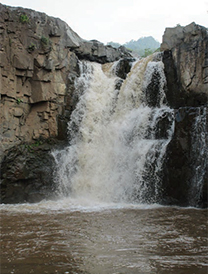
Original image

Zarwani Waterfalls
The attached picture is of Zarwani waterfalls at Shoolpaneshwar Wildlife Sanctuary. Please provide your expert advice and tips to further enhance the picture by post processing.

Manish Sitlani, Vadodara

There are two basic ways to photograph waterfalls – (a) the way you have done it, by using faster shutter speeds to freeze the water, or (b) by using slow shutter speeds to convey motion. Both are fine.

While photographing any subject, one has to be very careful about the background. Generally speaking, bald skies do not add to a picture; rather, they distract attention from the main subject. Post-processing allows us to add a suitable sky to enhance such images. It would help if you have an assortment of sky images to choose from. There are different ways to replace the sky, but here is a simple method which I have followed.

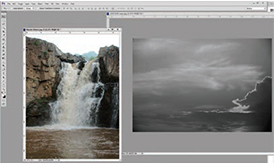
• Open both the images in Photoshop – the sky image and the waterfall image (PS 1). Ensure that the Layers panel is visible (if not, click the F7 key on the keyboard).

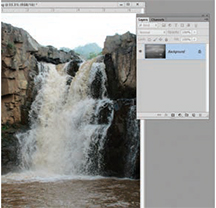
• Select the waterfall image. It will show as Background in the Layers  panel. (PS 2)

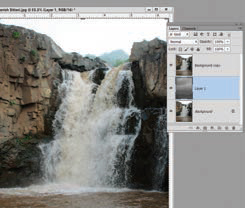
• Duplicate this Background layer by dragging it to the ‘Create a new layer’ icon at the bottom of the Layers panel. This will show as Background copy in the Layers panel.
naskuncle2
Printscreen 1
naskuncle3
Printscreen 2

• Select the new sky image and using the Move tool, drag it over the waterfall image. In the Layers panel, this will show as Layer 1. (PS 3)

• In the Layers panel, using the computer mouse, drag Layer 1 under the Background copy. When you do that, the waterfall image will be revisible. (PS 4)

• Select the Background copy layer.

• Add a Layer Mask (click on the square with a circle in it, at the bottom of the Layers panel). (PS 5)

• Using the Magic Wand tool, select the sky.

• Select the Gradient tool (PS 6). Ensure  that Linear Gradient and Foreground to Transparent is selected at the top. Also ensure that black is the foreground colour. Drag downwards from the top of the image to cover the sky area.

• Press Ctrl. D to deselect.
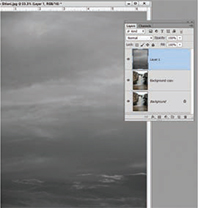
naskuncle4
Printscreen 3
naskuncle5
Printscreen 4

• In case you want to change the area of the visible sky in the picture, select Layer 1 and move the sky using the Move tool.

• Flatten the image and save the file using the Save As command.

Note: It is important to select the right sky for a particular scene. For example, if the main subject was photographed during the rainy season (when the sky is usually not blue), your selected sky should not be blue like what you see in mountainous regions. Also, the direction of lighting should be identical in the original scene and the new sky.

Pages: 1 2

Filed Under: Ask Uncle Ronnie, Tutorials

LATEST ISSUE

The EISA Awards 2026-2027

EISA MAESTRO 2026 THEME: Travelling

EISA AWARDS 2025-26 ‘In the Spotlight’

MAGZTER Subscription Offer

  • Facebook
  • Instagram
  • Twitter
  • YouTube

EPSON EcoTank L8180

Chance to Get Featured

Interested in being featured in Smart Photography? Send us low-resolution versions of 12 to 20 of your best images, and stand a chance to exhibit your work in our Kaleidoscope, Showcase or Mastercraftsman section.

Email: sp@nextgenpublishing.net

CONTESTS

Smart Photography Awards 2026

April 13, 2026 By SPEdit Team

… Continue Reading

Sony World Photography Awards 2026: National and Regional Winners Announced

March 19, 2026 By Gandhi Mathi

… Continue Reading

Epson Projectors and Printers Win the iF DESIGN AWARD 2026

March 19, 2026 By Gandhi Mathi

… Continue Reading

More Posts from this Category

Text Widget

Copyright © 2026 · Smart Photography Magazine

Recent

  • Samyang AF 24mm–60mm F 2.8 FE
  • Nikkor Z 35mm F/1.2 S
  • Nikon ZR – Review
  • Fujifilm GFX 100 RF- Photographer’s Delight
  • BenQ Introduces 5K Flagship MA270S

Search

Copyright © 2026 · Smart Photography Magazine ·